> ## Documentation Index
> Fetch the complete documentation index at: https://ngquct-feat-mssql-user-defined-types.mintlify.site/llms.txt
> Use this file to discover all available pages before exploring further.
# Managing Connections
> Create, organize, and switch database connections
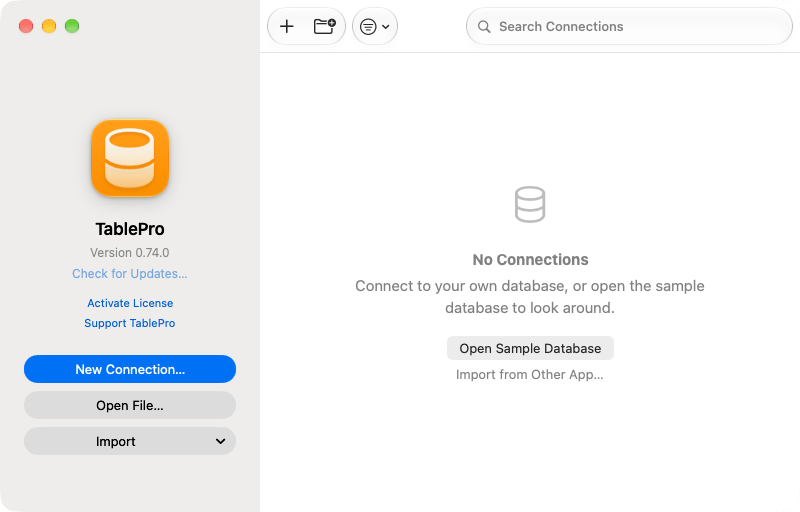
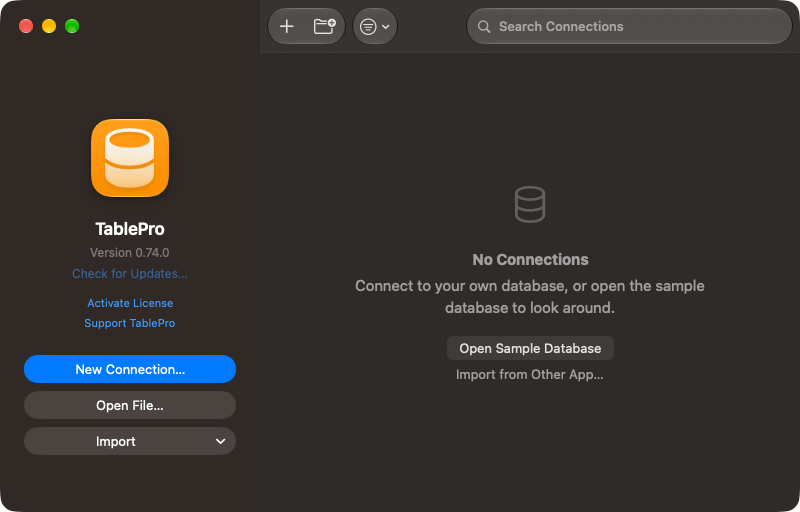
Press `Cmd+N` anywhere in the app to open the connection form. **New Connection…** on the welcome window does the same, and the **Import** menu under it takes one from a URL, [another client](/features/connection-sharing), an exported file, or a [project folder](/features/project-folder-import). Saved connections fill the right side of that window. The search field in its toolbar, focused by `Cmd+F`, matches name, host, database, username, type, tag and group. Drag an edge of the window to make the list bigger; the size and position come back at the next launch. Until you save a connection, that side offers **Open Sample Database** instead, plus **Import from Other App…** when a client TablePro imports from is installed.
 ## Create a connection
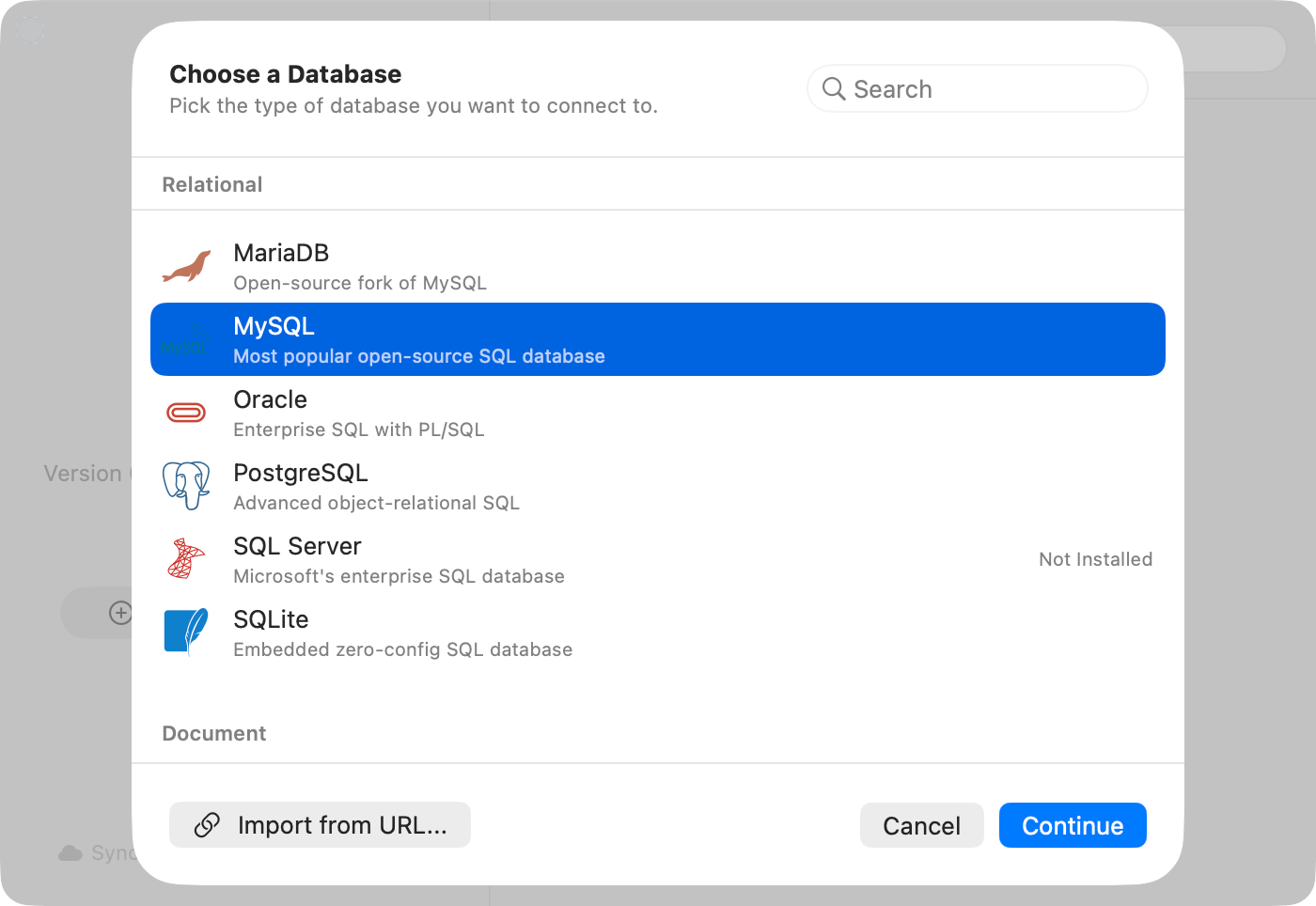
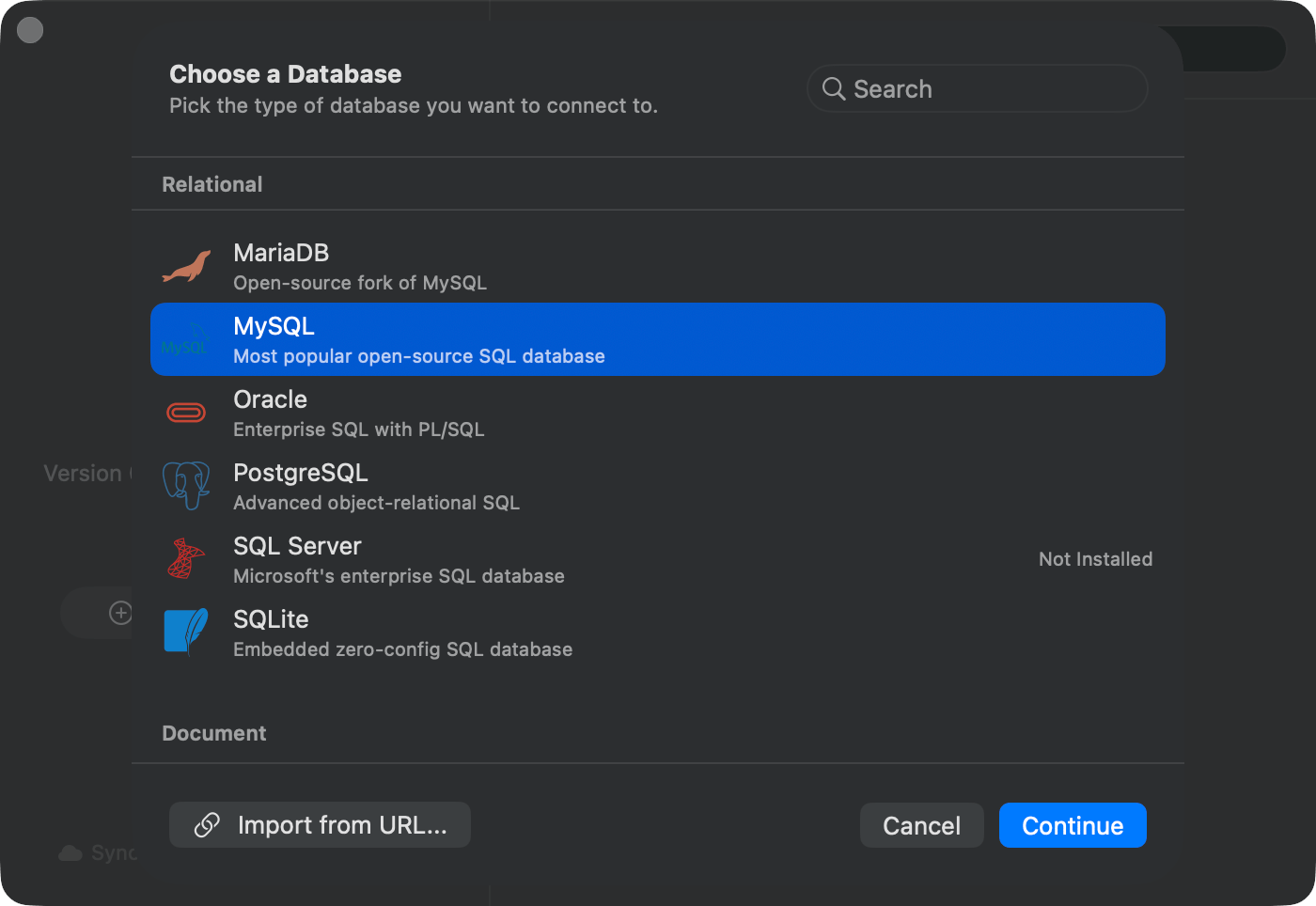
The chooser sheet groups drivers as Relational, Document, Key-Value, Analytical, Wide-Column, Cloud Native, Coordination & Config, and Other. Picking a driver badged **Not Installed** offers the download before the form opens. See [Plugins](/features/plugins).
Host, port, and credentials live on **General**. Everything else has a pane of its own; see [Connection form](/connections/connection-form).
On success the button becomes a green checkmark and reads **Connected**. On failure a **Connection Test Failed** sheet carries the driver's own message, and for errors the driver recognizes a diagnostic sheet appears instead, with suggested fixes and **Copy Diagnostic Info**.
The connection is saved and the window opens on it. **Save** alone keeps it without connecting.
## Create a connection
The chooser sheet groups drivers as Relational, Document, Key-Value, Analytical, Wide-Column, Cloud Native, Coordination & Config, and Other. Picking a driver badged **Not Installed** offers the download before the form opens. See [Plugins](/features/plugins).
Host, port, and credentials live on **General**. Everything else has a pane of its own; see [Connection form](/connections/connection-form).
On success the button becomes a green checkmark and reads **Connected**. On failure a **Connection Test Failed** sheet carries the driver's own message, and for errors the driver recognizes a diagnostic sheet appears instead, with suggested fixes and **Copy Diagnostic Info**.
The connection is saved and the window opens on it. **Save** alone keeps it without connecting.
 Every driver's default port, and which of SSH tunnel, SSL/TLS, Cloudflare Tunnel, Cloud SQL Proxy, and SOCKS Proxy it accepts, is in the [connection form reference](/connections/connection-form#which-drivers-get-which-transports).
### Import from URL
Paste a connection string instead of typing the fields. Click **Import from URL…** in the chooser sheet footer, paste, check the parsed preview, and click **Import**. The form opens filled in, ready to save. Schemes, query parameters, and the `+ssh` form are in the [Connection URL Reference](/connections/urls).
Every driver's default port, and which of SSH tunnel, SSL/TLS, Cloudflare Tunnel, Cloud SQL Proxy, and SOCKS Proxy it accepts, is in the [connection form reference](/connections/connection-form#which-drivers-get-which-transports).
### Import from URL
Paste a connection string instead of typing the fields. Click **Import from URL…** in the chooser sheet footer, paste, check the parsed preview, and click **Import**. The form opens filled in, ready to save. Schemes, query parameters, and the `+ssh` form are in the [Connection URL Reference](/connections/urls).
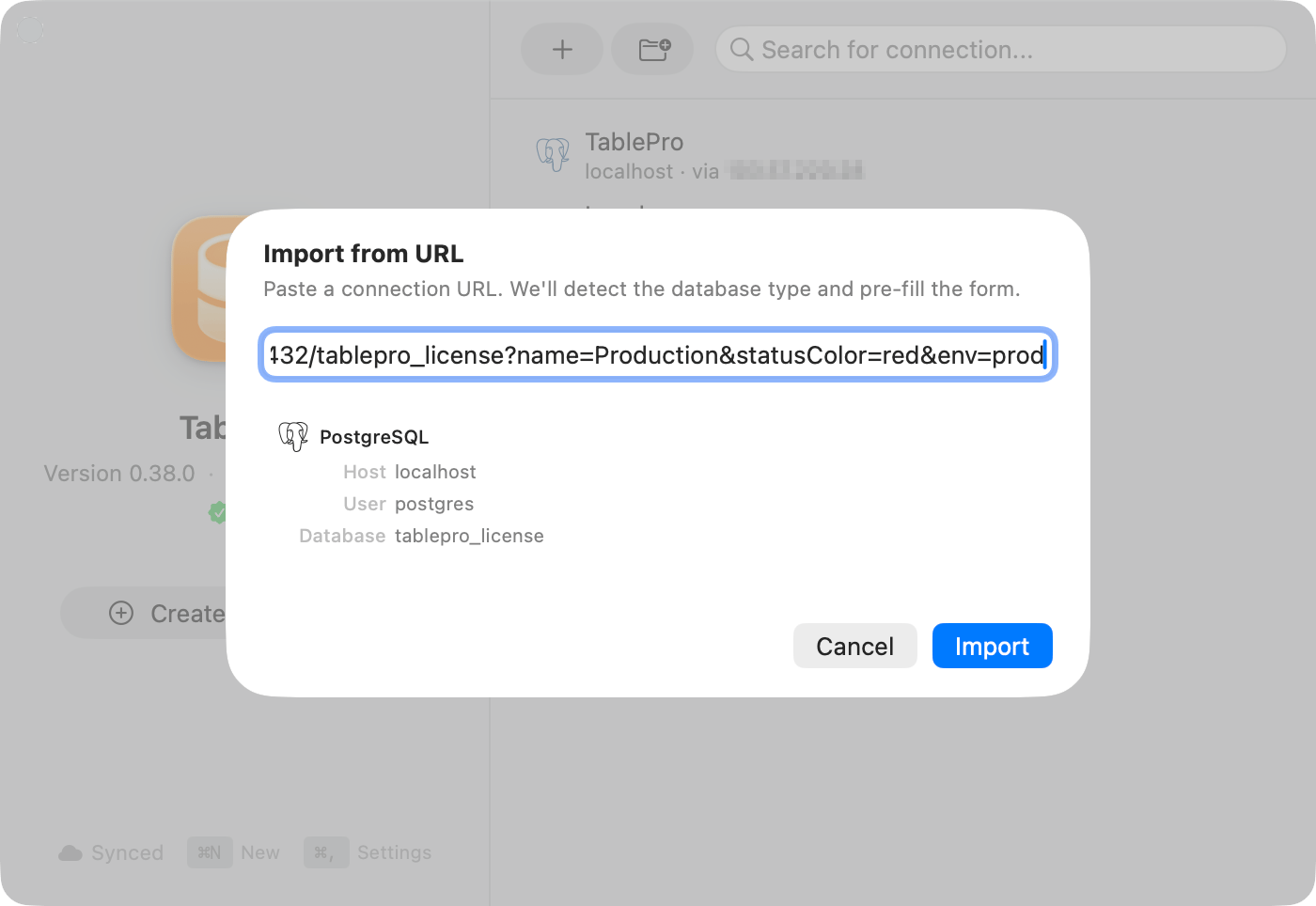
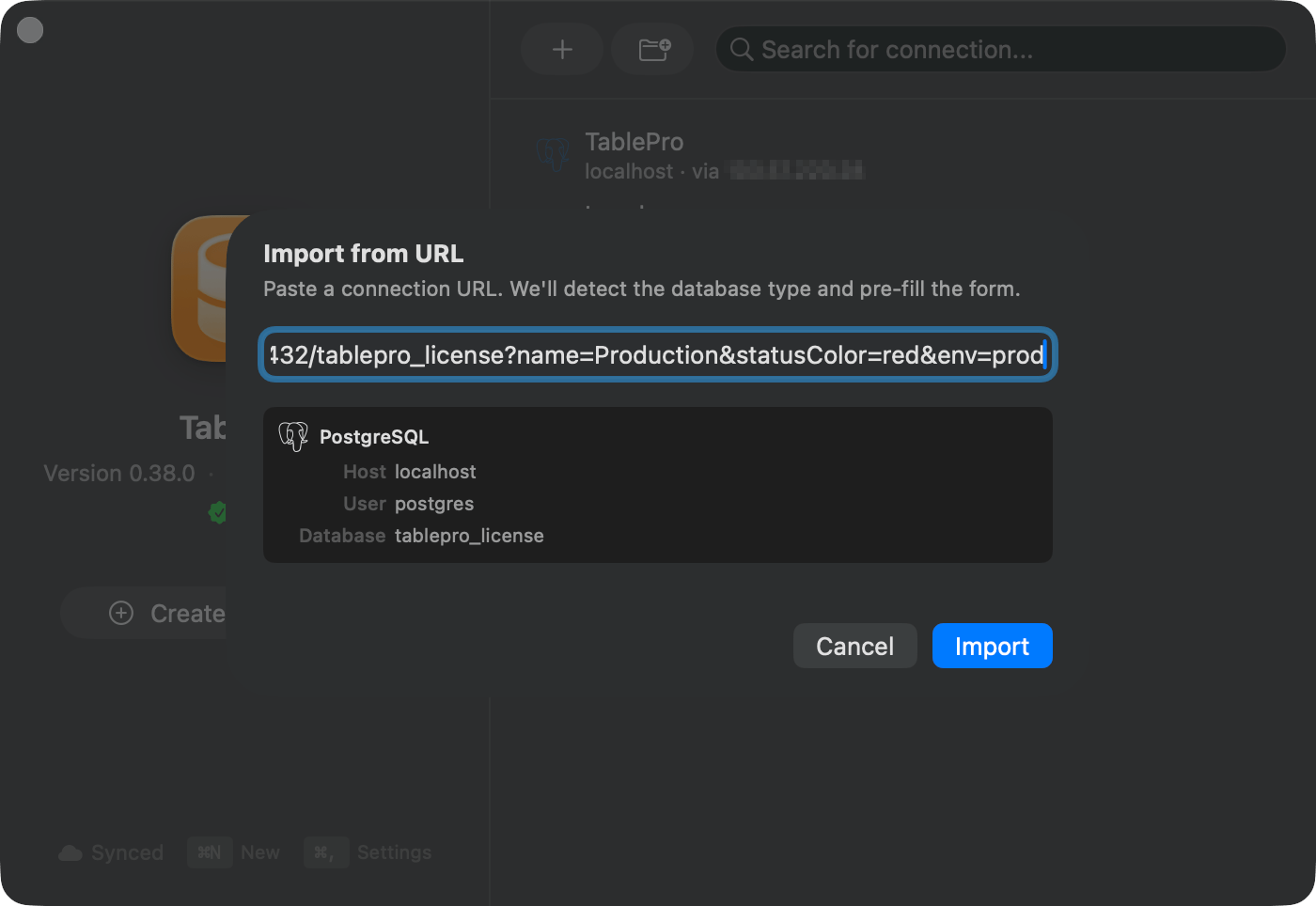 Special characters in passwords (`@`, `#`, `%`) need percent-encoding. `p@ssword` becomes `p%40ssword`.
### Open a URL without saving anything
```bash theme={null}
open "postgresql://user:pass@host:5432/dbname"
```
A confirmation alert names the target first. Matching a saved connection on type, host, port, database, and username reuses it; otherwise the session is temporary and never joins your connection list, and the URL's password stays in memory rather than reaching the Keychain. [Confirmation and trusted links](/connections/urls#confirmation-and-trusted-links) covers **Always Allow** and how to revoke it.
## Organize connections
The **Customization** pane holds a color, tags, and a group. The color tints the toolbar while the connection is open.
Special characters in passwords (`@`, `#`, `%`) need percent-encoding. `p@ssword` becomes `p%40ssword`.
### Open a URL without saving anything
```bash theme={null}
open "postgresql://user:pass@host:5432/dbname"
```
A confirmation alert names the target first. Matching a saved connection on type, host, port, database, and username reuses it; otherwise the session is temporary and never joins your connection list, and the URL's password stays in memory rather than reaching the Keychain. [Confirmation and trusted links](/connections/urls#confirmation-and-trusted-links) covers **Always Allow** and how to revoke it.
## Organize connections
The **Customization** pane holds a color, tags, and a group. The color tints the toolbar while the connection is open.
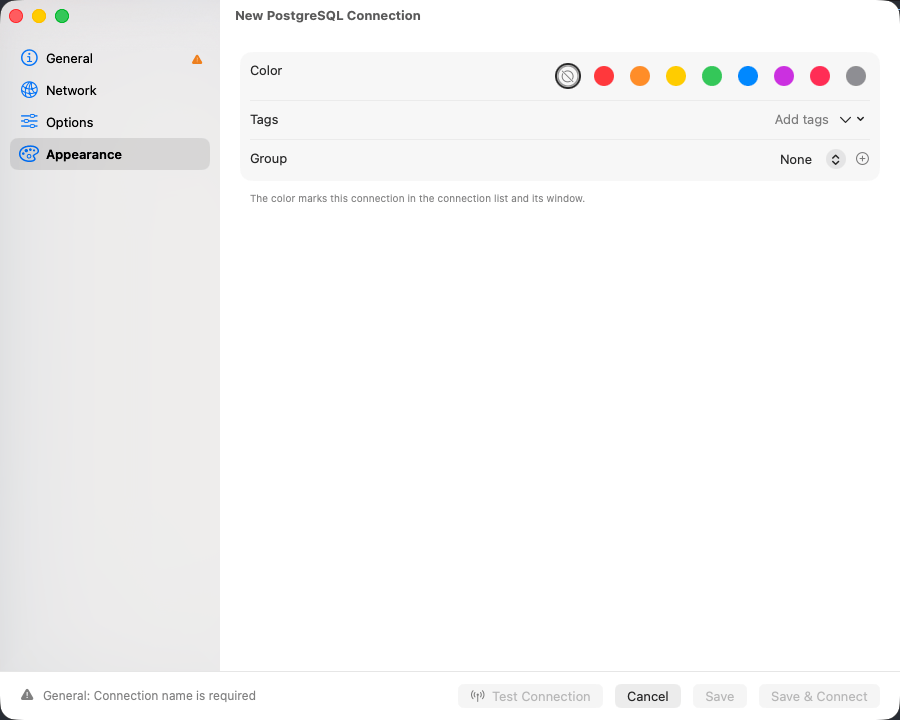
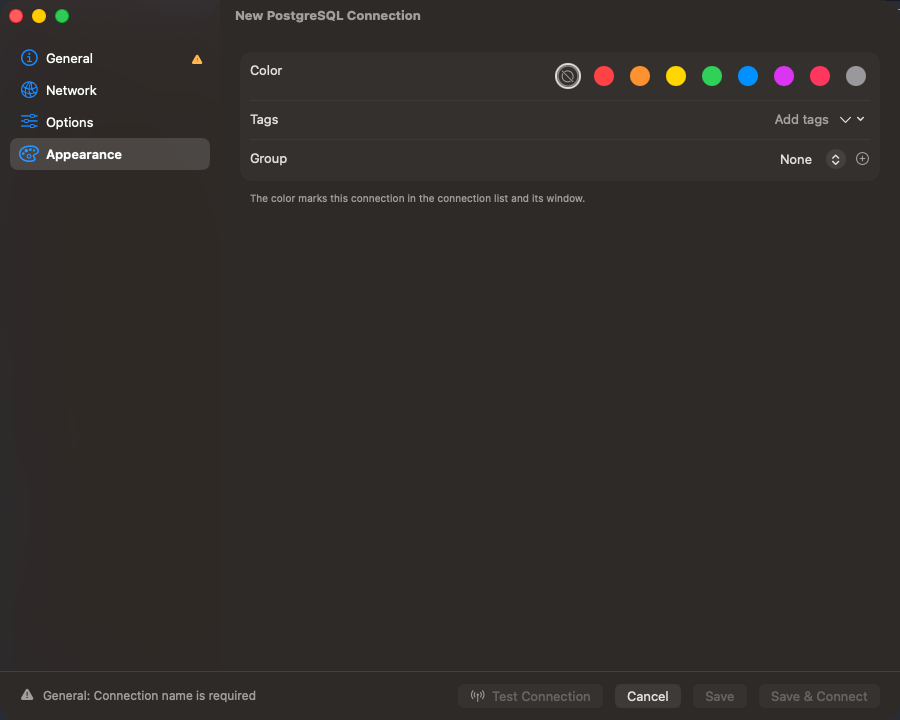 Red for production, green for development. Set Safe Mode to **Read-Only** on production to block accidental writes. See [Safe Mode](/features/safe-mode).
| | How it works |
| ------------- | -------------------------------------------------------------------------------------------------------------------------------------------------------------------------------------------------------------------------------------------------------------------------------------------------------------------------------------------------------------- |
| **Groups** | Folders in the connection list, nested up to three levels. Choose **File > New Group…**, or right-click empty space for **New Group…**. Right-click a group for **Rename**, **New Subgroup…**, **Color**, **Move Group To**, and **Delete Group…**. Deleting a group deletes its subgroups too and leaves the connections inside ungrouped rather than deleted |
| **Tags** | Several per connection, each with a name and color. Type a tag's name in the search field and pick it to filter by it, or choose tags from **Filter by Tag** in the **View Options** menu. With two or more chosen, **Match** switches between any and all of them, and **Clear Filters** removes them |
| **Favorites** | Right-click a connection and choose **Add to Favorites**, or drag it onto the **Favorites** header. Favorites gather in a section at the top while the connection keeps its place in its group |
| **Recent** | The five connections you opened last, favorites left out. Right-click one for **Remove from Recent**, or the section header for **Clear Recent** |
A connection's group, tags, and favorite sync through iCloud, to the iPhone and iPad app as well, unless it is marked local only. See [iCloud Sync](/features/icloud-sync).
### Arrange the list
Drag connections and groups into a group, or onto the **Connections** header to take them out of every group. Choose the order under **View > Sort Connections By** or **Sort By** in the **View Options** menu: **Manual**, **Name**, **Database Type**, or **Last Connected**. Dragging to a spot between rows needs **Manual**; in the other orders a drop files the connection into the group and the sort places it. **Edit > Undo** puts a move back.
To rename a connection or group, select it and choose **File > Rename**. Press `Return` to keep the new name or `Escape` to restore the old one.
The sort order and the Recent section stay on this Mac.
## Switch connections and databases
Press `Ctrl+Cmd+C` for **Switch Connection**. Whatever is already open sits at the top, then your favorites and the connections you opened last, and the rest are listed under the group they belong to, a nested group carrying its full path. Arrow keys move, `Return` switches the window to that connection, and `Cmd`-click opens a saved one in a window of its own. Typing searches every group at once and collapses the matches into a single list.
A footer under that list names the transport the window's connection runs on. On an SSH tunnel or a SOCKS proxy it also carries the bytes that have crossed since the transport opened, received and sent.
The rest show their name alone. Cloudflare Tunnel, Cloud SQL Auth Proxy and Tunnel Command each run a separate binary that holds the connection end to end, a [remote database file](/connections/remote-database-files) is fetched once and then read from disk, and a direct connection's socket belongs to the database driver.
### Throughput in the toolbar
The same two transports put a live figure beside the connection name in the middle of the toolbar, an arrow for whichever direction is busier and the rate: `↓145 kB/s`. It reads `0 kB/s` while nothing moves, which is most of the time on a database connection. A connection on any other transport has no figure there at all.
**Open Database** (`Cmd+K`) moves to another database on the same server.
Red for production, green for development. Set Safe Mode to **Read-Only** on production to block accidental writes. See [Safe Mode](/features/safe-mode).
| | How it works |
| ------------- | -------------------------------------------------------------------------------------------------------------------------------------------------------------------------------------------------------------------------------------------------------------------------------------------------------------------------------------------------------------- |
| **Groups** | Folders in the connection list, nested up to three levels. Choose **File > New Group…**, or right-click empty space for **New Group…**. Right-click a group for **Rename**, **New Subgroup…**, **Color**, **Move Group To**, and **Delete Group…**. Deleting a group deletes its subgroups too and leaves the connections inside ungrouped rather than deleted |
| **Tags** | Several per connection, each with a name and color. Type a tag's name in the search field and pick it to filter by it, or choose tags from **Filter by Tag** in the **View Options** menu. With two or more chosen, **Match** switches between any and all of them, and **Clear Filters** removes them |
| **Favorites** | Right-click a connection and choose **Add to Favorites**, or drag it onto the **Favorites** header. Favorites gather in a section at the top while the connection keeps its place in its group |
| **Recent** | The five connections you opened last, favorites left out. Right-click one for **Remove from Recent**, or the section header for **Clear Recent** |
A connection's group, tags, and favorite sync through iCloud, to the iPhone and iPad app as well, unless it is marked local only. See [iCloud Sync](/features/icloud-sync).
### Arrange the list
Drag connections and groups into a group, or onto the **Connections** header to take them out of every group. Choose the order under **View > Sort Connections By** or **Sort By** in the **View Options** menu: **Manual**, **Name**, **Database Type**, or **Last Connected**. Dragging to a spot between rows needs **Manual**; in the other orders a drop files the connection into the group and the sort places it. **Edit > Undo** puts a move back.
To rename a connection or group, select it and choose **File > Rename**. Press `Return` to keep the new name or `Escape` to restore the old one.
The sort order and the Recent section stay on this Mac.
## Switch connections and databases
Press `Ctrl+Cmd+C` for **Switch Connection**. Whatever is already open sits at the top, then your favorites and the connections you opened last, and the rest are listed under the group they belong to, a nested group carrying its full path. Arrow keys move, `Return` switches the window to that connection, and `Cmd`-click opens a saved one in a window of its own. Typing searches every group at once and collapses the matches into a single list.
A footer under that list names the transport the window's connection runs on. On an SSH tunnel or a SOCKS proxy it also carries the bytes that have crossed since the transport opened, received and sent.
The rest show their name alone. Cloudflare Tunnel, Cloud SQL Auth Proxy and Tunnel Command each run a separate binary that holds the connection end to end, a [remote database file](/connections/remote-database-files) is fetched once and then read from disk, and a direct connection's socket belongs to the database driver.
### Throughput in the toolbar
The same two transports put a live figure beside the connection name in the middle of the toolbar, an arrow for whichever direction is busier and the rate: `↓145 kB/s`. It reads `0 kB/s` while nothing moves, which is most of the time on a database connection. A connection on any other transport has no figure there at all.
**Open Database** (`Cmd+K`) moves to another database on the same server.
 Leaving **Database** empty on MySQL, MariaDB, MongoDB, SQL Server, and ClickHouse browses every database the user can reach. PostgreSQL and Redshift need one to connect at all: use `postgres` (Redshift: `dev`) and switch with `Cmd+K`. System databases such as `mysql`, `information_schema` and `master` sit at the end of the switcher under **System**. To hide the rest, choose **View > Filter Databases** and check the ones you want; the choice is saved per connection and never hides a system database from the switcher.
## Edit, delete, and where it all lives
Right-click a connection to edit or delete it, or select it and press `Delete`. Deleting asks first and removes the saved settings, nothing on the server. Pressing `Delete` on a row under **Favorites** or **Recent** only takes it out of that section. Edits apply on the next connect.
Connections are stored in `~/Library/Application Support/TablePro/connections.json` with their passwords in the macOS Keychain, so copying that file to another Mac restores the connections without the passwords.
Right-clicking the Dock icon lists saved connections under **Open Connection**.
Leaving **Database** empty on MySQL, MariaDB, MongoDB, SQL Server, and ClickHouse browses every database the user can reach. PostgreSQL and Redshift need one to connect at all: use `postgres` (Redshift: `dev`) and switch with `Cmd+K`. System databases such as `mysql`, `information_schema` and `master` sit at the end of the switcher under **System**. To hide the rest, choose **View > Filter Databases** and check the ones you want; the choice is saved per connection and never hides a system database from the switcher.
## Edit, delete, and where it all lives
Right-click a connection to edit or delete it, or select it and press `Delete`. Deleting asks first and removes the saved settings, nothing on the server. Pressing `Delete` on a row under **Favorites** or **Recent** only takes it out of that section. Edits apply on the next connect.
Connections are stored in `~/Library/Application Support/TablePro/connections.json` with their passwords in the macOS Keychain, so copying that file to another Mac restores the connections without the passwords.
Right-clicking the Dock icon lists saved connections under **Open Connection**.